
Many newcomers need to complete an online form, send a professional email, join a video appointment or apply for work before they feel comfortable using a computer. Free digital skills training for newcomers in Canada can make those tasks more manageable, especially when lessons focus on real situations rather than abstract technology terms.
The best starting point is usually not the most advanced course. Choose learning that matches your immediate goals, such as using email, creating a résumé, protecting personal information or working with common office software. Local support may also help if you need a computer, internet access, language assistance or one-to-one guidance.
Table of contents
- Where to look for free learning
- The digital skills to learn first
- How to choose a suitable course
- Build a simple learning pathway
- Turn training into practical progress
Where to look for free learning
Start with organizations that already support people in your community. Settlement agencies may offer digital orientation, workshops, referrals or access to computers. Public libraries can be useful for computer access, basic technology sessions and help with online research, although services differ between branches and communities.
Employment centres, community organizations, colleges and adult-learning providers may also run workshops. Ask whether the programme is intended for newcomers, whether registration is required and whether you can attend without your own device. A provider may offer free instruction but expect learners to bring a laptop or use a library computer, so confirm the practical details before enrolling.
For online study, Google Applied Digital Skills may be a useful place to explore practical activities, while Microsoft Learn provides self-paced technology content. These platforms cover different subjects and learning styles. Check each course page for current access, language options, device requirements and any assessment or certificate conditions.
The Government of Canada newcomer services pages can help you identify settlement-related information and support routes. You can also ask a settlement worker to help you find local digital learning rather than relying only on general online searches.
The digital skills to learn first
A useful beginner course should connect technology with tasks you are likely to perform. Consider these areas in order of urgency:
Everyday computer use
Learn how to turn a device on and off, connect to Wi-Fi, use a keyboard and mouse, open applications, save files and find downloads. These basics reduce frustration when a later lesson involves an online form, attachment or video meeting.
Email and online communication
Practise creating a clear subject line, replying to a message, attaching a document and recognizing suspicious requests. Video-call skills may include muting your microphone, checking your camera and entering a meeting safely. These abilities can support appointments, school communication and workplace conversations.
Online safety and privacy
Look for guidance on strong, unique passwords, multi-factor authentication, software updates, phishing messages and safe use of public Wi-Fi. Do not share sensitive identity, banking or immigration information simply because a message appears urgent. If you are unsure about a request, pause and verify it through an official contact method.
Job-search technology
Digital training can be especially useful for creating and editing a résumé, saving different versions of a document, completing online applications and organizing job postings. The Job Bank is one official employment resource to explore, but you should also learn how to check whether a posting is genuine and how to protect your personal information during an application.
Common workplace software
Many roles use word processors, spreadsheets, calendars, file-sharing systems or messaging platforms. You do not need to master every programme. Focus on transferable actions: formatting a document, entering information accurately, sorting a simple list, using a calendar and sharing a file with the correct permissions.
How to choose a suitable course
Two courses may both be described as beginner computer training but provide very different experiences. Before registering, compare the following points:
- Learning level: Check whether the course assumes previous computer experience.
- Practical focus: Prefer lessons that include demonstrations and practice with realistic tasks.
- Format: Decide whether you need an in-person class, live online support or self-paced study.
- Language: Ask about instruction, translated materials and terminology support.
- Access: Confirm whether you need a device, internet connection, software account or printer.
- Accessibility: Ask about captions, readable materials, assistive technology and physical access.
- Support: Find out how to ask questions when you are stuck.
- Proof of learning: Confirm whether you receive a completion record, certificate or no formal credential.
Be cautious with any course that makes broad promises about employment or asks for sensitive information before explaining why it is needed. Free should describe the learner’s cost clearly: some programmes may be free to attend but charge for optional exams, printed materials or advanced services.
Build a simple learning pathway
A short sequence is easier to maintain than trying to learn everything at once. Begin by writing down three tasks you want to complete independently. For example, you might want to send an attachment, apply for a job online and join a video appointment.
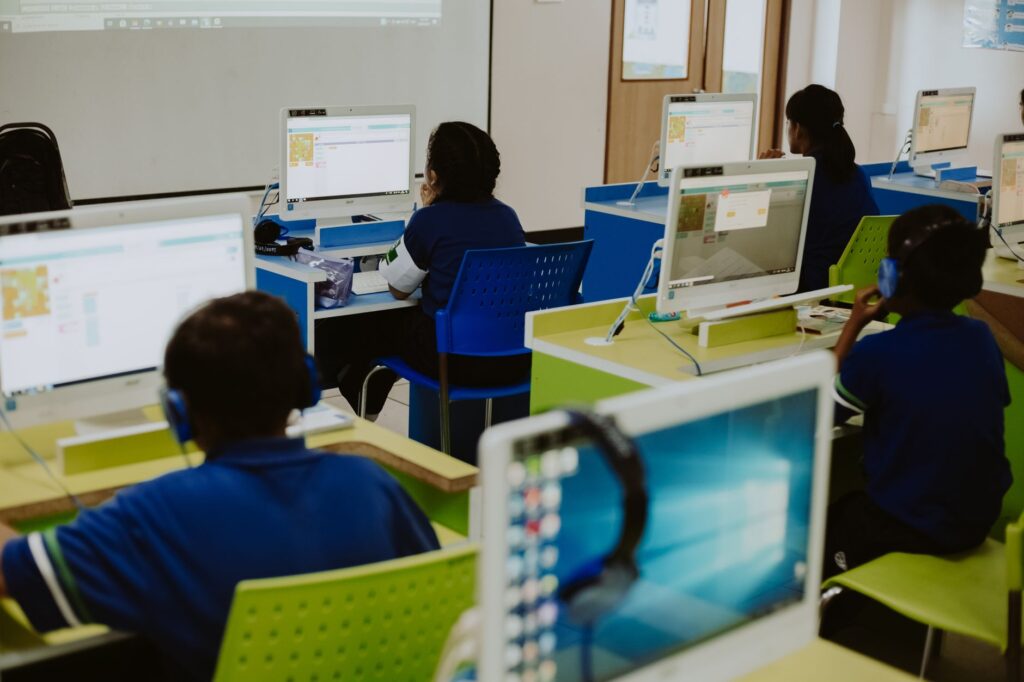
Next, choose one beginner lesson for each task. Practise immediately using a safe sample document or a non-sensitive email. Keep a small list of questions, shortcuts and new terms. If possible, return to the same instructor, library or settlement worker so that each session builds on the last one.
After the basics, add skills that match your target work or study path. Someone preparing for office administration may prioritize spreadsheets and calendars. Someone working in a service role may benefit from digital scheduling, workplace messaging and customer-record systems. The goal is relevant confidence, not collecting courses.
Turn training into practical progress
Learning becomes more useful when you can show what you can do. Create a simple practice folder with a sample résumé, a formatted letter, a basic spreadsheet and notes about online safety. Do not use real passport details, banking information or other sensitive data in practice files.
Keep a record of course names, dates, topics and any completion evidence. A certificate may be helpful, but a clear explanation of the tasks you can perform can also strengthen a conversation with an employment counsellor or potential employer. Present skills honestly and describe your level rather than claiming expertise after a short introductory course.
If you need structured support, ask a local settlement or employment organization about free digital skills training for newcomers in Canada. A counsellor may help you identify a suitable level, find a device or connect your learning plan to language classes and employment goals.
Digital confidence develops through repeated, practical use. Choose one immediate task, find a trustworthy learning source and practise until the task feels routine. Then build gradually toward the technology used in your work, education and daily life.